Tuesday, April 14, 2020

April 14-17 Google Classroom Learning Tasks

Happy Tuesday Room 5 Families! 

I hope that you had a eggcellent weekend! 

There are new assignments posted for this week on Google Classroom. It is expected that students spend 1 hr a day working towards the completion of these assignments. If parents have questions or difficulties with the assignments please send me a direct email to hlmorden@cbe.ab.ca. If students have questions regarding the assignments they can add a question/comment on the right hand side of the assignment. The goal is for assignments to be submitted through Google Classroom (not emailed or shared on Google Drive) by Sunday so that students can have a fresh start with new assignments on the Monday. 

On Wednesday, we will be having our first Google Meet. This will be a chance for me to speak with the students about Google Classroom, their expectations as students, and to check in to see how everyone is doing. Please confirm if your child can attend our Google Meet by answering the poll question on Google Classroom. 


I hope that everyone is doing well, warmer weather is on the way!
Mrs. Morden

Monday, April 6, 2020

Google Classroom

We will be using Google Classroom as a learning platform as we continue ongoing learning from home. Below is a brief introduction to Google Classroom and how students in Grade 3/4 at Lake Bonavista School will be accessing the tool. 

Google Classroom 
Google Classroom is an online platform that enables us to communicate with our students as well as assign and distribute tasks. Google Classroom gives us the ability work with our students in safe, manageable, and appropriate way. It will also help students manage their work while learning from home. Students will access Google Classroom using their CBE G Suite ID (username@educbe.ca). As we begin to use these new teaching and learning tools, we will work with our students and their families to help them understand both the benefits and risks of using online tools.

Accessing Google Classroom for the First Time
Google provides excellent resources to help with signing into Google Classroom and joining a class, along with other supports. ▪ How do I sign in to Classroom? ▪ Join a class as a student ▪ Troubleshooting for students

Join a class as a student

To use Classroom, you need to sign in on your computer or mobile device and then join classes.
Then, you can get work from your teacher and communicate with your classmates.
When you join a class on one device, you're enrolled in that class on all devices.

How to join a class


Our classroom code is: 
mxoriwn 

You have 2 ways to join a class:
  • 1) Join a class with a class code—If your teacher gives you a class code,
  • use this code to add yourself to the class. Your teacher might give you the code while
  • you’re in class or email it to you.
  • 2) Accept an invitation from your teacher—If your teacher sends you an invitation,
  • you’ll see Join on the class card on your Classroom homepage.

Forgot or lost the class code? Code won't work?

If you deleted, lost, or forgot the class code before joining a class, ask your teacher to resend
the code or set a new one. If the code isn’t working, ask your teacher for help.
Note: You only use the class code once to join the class. You are then enrolled in the class,
and you don't need to re-use the code again.

Join a class

Computer AndroidiPhone & iPad
You must be signed in to Classroom before you can join a class. Unsure if you’re signed in?
Learn more about how to sign in to Classroom.

Join a class with a class code

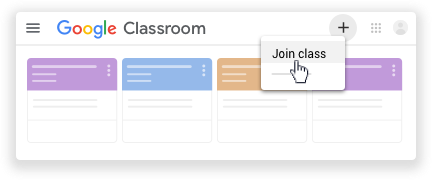
  1. At the top, click Add Add and then Join class.
    Click Join class
  2. Enter the class code your teacher gave you and click Join.
    A class code consists of 6 or 7 letters or numbers. For example, hjhmgrk or g5gdp1.
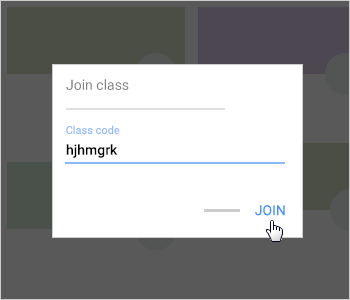
    Enter class code

Accept an invitation from your teacher

  1. On the class card, click Join.
    Click Join

Note: Only your teacher can change the class image. However, you can change your Classroom profile photo. For instructions, see Change your profile photo.
l

Our classroom code is: mxoriwn 

Ongoing G Suite Support Students and Families can find more information and support on the CBE website.

Thank you for your support and patience as we all adjust to ongoing learning at a distance.
We will keep you informed every step of the way.

Mrs. Morden
hlmorden@cbe.ab.ca

Thursday, April 2, 2020

Practical Life Skills Assignment

You may choose to submit evidence of participation and learning through photographs, snapshots of your sketches and reflections, oral/video recording or by writing/typing a written reflection. 

Please have your child respond to me either through their Google Drive Account, using Google Documents or Google Slides. They will need to click on 'share' and put in my G Suite email address: hlmorden@educbe.ca so I may see their responses. As another option, students can email me directly through: hlmorden@cbe.ab.ca to submit their responses to the assignment.


Wednesday, April 1, 2020

Lake Bonavista School Wide Assignment


Hello Families! 

Here is your first assignment! You may choose to submit evidence of participation and learning through photographs, snapshots of your sketches and reflections, or by writing/typing a written reflection. 

Please have your child respond to me either through their Google Drive Account, using Google Documents or Google Slides. They will need to click on 'share' and put in my G Suite email address: hlmorden@educbe.ca so I may see their responses. As another option, students can email me directly through: hlmorden@cbe.ab.ca to submit their responses to the assignments.

Mrs. Morden will also be contacting all parents through email to share student email addresses and passwords. Please note that this will come in two separate emails due to privacy and protection.


Monday, March 30, 2020

Welcome Back

Welcome Back Students and Families,

I will be contacting each family via phone to reconnect and discuss our new on-line learning situation. I want to note that my phone number will be displayed as 'blocked' or 'unknown' when I call. I will leave a message and then try to connect with your family via an email if I do not reach you. Please feel free to email me at any time. 

I am looking forward connecting with my students and families again, as you are all dearly missed.  


Mrs. Morden

Friday, March 20, 2020

Room 5- A continuation of our learning

Happy FriYAY Room 5 students and families,

As a continuation of our learning, students are encouraged to read every day! Students can log in to Raz-kids, with the teacher username hmorden0.  https://www.kidsa-z.com/main/Login 

We have also used Dancemat Typing as a resource to practice our typing skills. https://www.bbc.co.uk/bitesize/topics/zf2f9j6/articles/z3c6tfr

In addition, we have been working on poetry the past few weeks, ask your child which poetry genres they have practiced (haiku, limerick, free verse, quatrain, cinquain) and see if you can create some new poems!

To help support extra math practice, I have signed us up for a free 30 day trial for the website IXL  https://www.ixl.com. Please contact me directly for your child's log in information. This website is aligned to the provincial curriculum and you can download IXL's free tablet apps for iPad, Android or Kindle and sign in with your child's username and password.

It is officially Spring! Today would have also marked the first day of Spring Break for all students. Remember to get outside and play in the fresh air!

Your teacher,

Mrs. Morden


Thursday, March 19, 2020

A message from Mrs. Morden

This message is for my amazing group of 22 rockstars,

I have missed each and everyone of you this week! If you would like to send me an email message or photos to give me an update on how you are doing and what you are up to, please ask your parents to help you do so! 

Be sure to wash your hands, get lots of sleep, listen to your parents!, read read read and don't forget everything you have learned about multiplication and division!!!

Talk soon,

Mrs. Morden